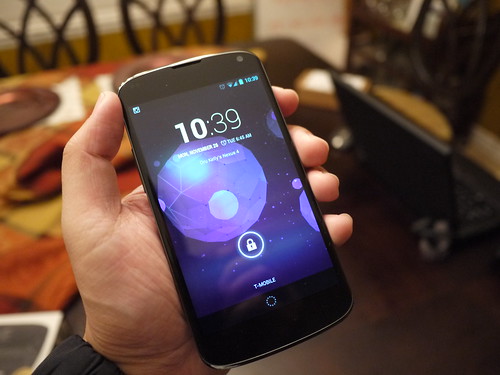
Wednesday, January 30, 2013

How I save money with smartphone apps and you can too

Do you have a smartphone?  Do you like saving money?  I know I do.  I need money to pay for things like textbooks and tuition and want to keep as much of my hard earned money as possible.  Here are a few apps that I have personally used to get discounts on things or just find the best price possible:

Gas Buddy


With this app, you get a list of the gas stations near your current location and what the prices are at all of the nearby stations.  From Gas Buddy, you can also launch any turn by turn or maps app that you have to get directions to the station you want to go to.

Hotel Tonight


With this app, you can book a hotel last minute with up to 70% savings.  They work with hotels to book the last open rooms at the last minute, so you can't book a hotel until after 12 noon on the same day of the booking, but they have great deals for some great hotels.  You can also use coupon codes to get even more discount.  You can get an additional $25 off your stay if you use this code: CSORAN1
Instead of paying the standard $165 per night rate, I stayed at a 4 star hotel in Seattle a few weeks ago for $85 using the app and a coupon code.

Groupon, Living Social


You've probably heard of Groupon and Living Social and may have already used their websites.  They have great deals for restaurants, goods, travel, and local experiences like plays or concerts.  For example, you can buy a voucher for $20 to spend at a restaurant for $10.  The mobile apps are great because you can save paper and don't need to print out your vouchers.  When you buy a Groupon or Living Social deal for restaurants, you can just bring your phone with you and show them the voucher from the app.


RedLaser


With RedLaser you can scan UPC codes of products and the app will look for the best price for that item in any stores or online retailers.  For example, if you were at Best Buy and wanted to know if the price at Best Buy was the best available for that Asus router that you want to buy, you could scan the UPC code with the app and find out the prices that online retailers like Amazon and Newegg have, as well as other nearby stores like Office Depot.


Safeway


You may already shop at Safeway for groceries and alway look for the food on sale.  With the Safeway app you can get the "Just for you" prices on specific foods.  Using the app, you can look through the items that they have discounts on and add them to "My List".  That list is connected to your Safeway card and anything that you buy in the store that is on that list, you will have automatically discounted at checkout.  Note that all of the "Just for you" discounts are applied at the very end, when you get your total and it doesn't come up as the item is being scanned.  My wife and I will just browse through the discounted items and just add anything that we might even think of needing to our lists.  More than once I have forgotten that I added items to the list and have received the discount at checkout.
Do you use apps on your smartphone to save money?  If so, please post them in the comments below.

Monday, January 28, 2013

GTD: Focusing on Tasks

First off I would like to apologize for the lack of recent posts on the blog.  The current cold bug hit the eLearning department pretty hard last week, but we are all back and almost at 100%!

I am a bit of a Getting Things Done (GTD) geek.  I like to make sure I am on track for completing projects and getting general work done in a timely manner.  There are always so many tasks to work on that it can be a bit overwhelming.  I have used a variety of task management apps (Remember the Milk, Things and The Hit List) to keep myself organized.  I currently use Apple's Reminders because of the iCloud synchronization.  They are all good apps but for me they have one major flaw.  It is much too easy to just change the due date on the task and forget about.  Before I know it I have tasks that are months old because it was too easy to put them off.

Recently I stumbled across something that completely changed task management for me.  I was surfing the web for productivity tools and found a site by David Seah.  On his site he had a variety of paper-based task management and project management solutions.  I had always avoided paper-based tools because I just always felt the digital tools were superior.  The one solution on David's site that really impressed me is his Emergent Task Planner.  It is a great task management tool and the best part is you can't just change the due date and put the task off, especially if you use a pen! :)

So, a little bit about how I use the tool.  I usually get to work around 7:30am and that is the time I start to organize my day.  The first thing I do is grab a new sheet of the ETP and fill out the date and the times, from 8am to 5pm.  


Then I look at my digital task list and pick three tasks that I have to complete by the end of the day.  


As I work through the day I list all the other activities that work on in addition to my tasks. 


As I work on items I list them on the left-hand side (see first image) and mark off the amount of time I spend on them.  If I am able to complete the initial three tasks then I reward myself by adding three more to the list.  This process has been very helpful.  With this system I have been able to stay on task and also identify things that tend to distract me from GTD, like email.

Tuesday, January 15, 2013

Canvas now has an Android app


Canvas has had an app for iOS for some time now, but they have lacked an app for Android.  They lack that app no more!  You can go here to download the app from the Play Store.

I had the chance to test out the app on my EVO 3D and on my new Nexus 4 and the app worked great on both devices.  It was handy to be able to access all of the courses I was enrolled in, check my grades, and read all of the content.  I spoke with one of the developers of the app and he said that they would be adding the ability to submit assignments, post to discussions, and take quizzes in the app soon, but that was not functionality they were able to add in the initial launch of the app.  It is a promising start for the app with many more great features to come.

Here is the official press release from Instructure Canvas about the launch of the Android app.  What do you think about the app?  Please post in the comments below.

Tuesday, January 8, 2013

$50 a month for unlimited data, texting, and talking without a contract - Save money on your cell phone plan so you can buy those textbooks

*

I am always looking for ways to save money and I'm sure you are too.  One way I was able to save money was to reduce my monthly cell phone bill.  A smartphone is an integral part of many people's everyday lives and you can have one contract-free for $50 per month.  There is even one phone plan that is $19 per month.  You may be paying more for texting and phone calling only, so why not have a smartphone for cheaper?  You can use that extra money you'll have to buy textbooks or pay for tuition.

I explain in detail on this page how you can make the switch to a contract free cell phone carrier and get unlimited data, texting, and talking for only $50 a month.

How do you save money on your cell phone bill?  Please post in the comments below and let me know.

*The image of the Nexus 4 is Creative Commons Attribution licensed and thanks to Dru Kelly.  The image of the iPhone is Creative Commons Attribution licensed and thanks to theOOBE.

Tuesday, December 11, 2012

Send links, maps, phone numbers, & more from your Chrome browser to your phone

chrome icon with arrow towards android phone

Are you ever on the computer and want to send what you have up on the screen to your phone?  I can think of many times that I was looking up restaurants on my computer and wanted to send the address to my phone so that I could then navigate to that place using the navigation app on my phone.  I'm sure that you can think of many similar situations.  Having to start researching all over again on your phone is a time waster. One you setup the application in Chrome and on your phone, you will be able to send links, maps, phone numbers, & more from the Chrome browser right to your phone.  Please see the two sections below for Android phones and iPhones and follow the steps for the device that you have.

Android Phones
First, you will need to go to this link and install the Chrome to Phone extension for your Chrome browser.  Next, you can go to this link on your phone to install the Chrome to Phone app.  You could also go to the Google Play store on your phone and search for "Google Chrome to phone".  The last step is to sign in to both the Chrome extension and the mobile app.  Once you've signed in, you can start sending things to your phone by clicking the extension in Chrome, like in the image below.
chrome to phone extension

Here is a video on Chrome to Phone:

iPhone, iPad, or iPod Touch
The app for sending information from Chrome to your iPhone or iPad is not as feature rich as the Android version, but you may still find it handy.   You can go to this link to install the Site to Phone Chrome extension.  The next step is to go to this link and install the app on your iPhone, iPad, or iPod touch.  You can also open up the App Store on your device and search for "Site to Phone".   The last step is to login to both apps and then you can start sending links and other things from Chrome right to your phone.

site to phone Chrome extension


Do you use other apps or methods of getting information from your computer to your phone?  If so, please post them in the comments below.

Monday, December 10, 2012

The Evernote Trunk

So, have you become a big Evernote fan yet?  If you have then you are going to love this post.  Evernote itself is a great tool, and the addition of Skitch makes it even greater!  But there is something else that really makes it an awesome tool, the integration with other tools, hardware and services.  You see there are a lot of other people out there that are big Evernote fans too and some of them are software developers and hardware manufacturers.  They like Evernote so much they have built integrations and developed hardware that works with Evernote in amazing ways.  I bet you are wondering where you can find all this great stuff.  All of it can be found right inside of Evernote by clicking on the "Trunk" button in the left-hand menu.  Once you click this button you will see a menu at the top where you can select Apps, How To, Hardware and Gear.


In the Apps area you will find Skitch and a host of other applications that are ready to integrate with Evernote.  One of my favorites is Instapaper which lets you archive webpages for later reading.

In the How To section you will find a number of books and guides for using Evernote.  I am a big fan of Lynda.com and will be checking into her offerings on Evernote!

In the Hardware you will find all kinds of scanners and other tools that can connect to the Evernote application.

There are some fantastic integrations that make Evernote even more versatile.  If you check any of them out leave a comment on the blog to let us know how it worked!

This will be my last post until the end of December.  So have a great holiday season everyone!

Wednesday, December 5, 2012

Taking notes in class - The digital way

Do you take notes while you are in class?  Do you use paper, a laptop, tablet, smartphone, or some combination of those?  Having access to my notes digitally and being able to search them has been invaluable to me, so I typically take notes using my computer.  I have also found it useful to take paper notes when I was in Math classes because there was just no way I could type all of those symbols and keep up with the instructor.

There are lots of services for you to type and take notes and here are the ones that I have found to be most useful.  These services are all free.

Google Docs
Google Drive icon


As I have mentioned in earlier blog posts, Google Docs and Google Drive have been invaluable. It is very easy to just create a folder for a course and quarter (like ENGL 101 Fall 2012) and then create documents to type class notes in.  You can look up these notes anywhere you have an internet connection and even offline if you set that up.  You can search through all of your notes to find specific topics and keywords.  This was helpful when studying for upcoming tests.  It was also helpful on test days, as I could open up the mobile app on my phone and read through my notes as I was riding the bus to class.

Google Drive also allows you to upload any type of files as well.  In addition to your notes for a class, you can upload PowerPoints, example files, images, or anything else from your instructor and have a central place (besides Canvas or Angel) to access all files and notes related to a particular class.

Here is a link to Google Drive/Docs.


Evernote
Evernote icon


Evernote is another fantastic note taking tool.  It was designed specifically for taking notes and doesn't have multiple uses like Google Drive, but it does its specific job quite well.  You can provide a very helpful and short explanation on Evernote in Andy's blog post here.  If you like taking handwritten notes, you can use your smartphone, iPad, or Android tablet take pictures of your notes and import them right into Evernote.  That is all explained here in another of Andy's blog posts.

Here is Evernote's website.


Springpad
Springpad icon


Springpad is a slightly different multi-use online tool.  Here is a short video to introduce you to it:


With Springpad, you can type your notes like in Evernote or Google Docs, but you can also add lots of other things, such as:


  • Links to websites
  • Or, add by items type:
    • movie
    • music
    • book
    • place
    • recipe
    • product
    • wine
    • tv show
    • photo
    • video
    • file
    • alarm
    • check list
    • event
    • task
    • contact


Springpad could serve as your notes, your to do list, contact list for your classmates you are working with on a project, list of bookmarks you want to save for your class, and much more.  In some ways, it is a more flexible tool than either Google Drive or Evernote.

Here is a link to Springpad's website.


How do you take notes in class?  Please post in the comments your go-to method for note taking in class.