Thursday, February 11, 2016

Mac OS built-in apps for screen/cam/audio recording: QuickTime X
Mac OS built-in apps for screen/cam/audio recording: QuickTime X

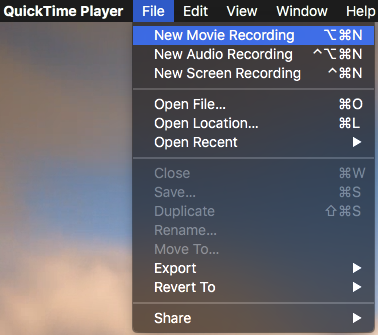
New Movie Recording
Go to File > New Movie Recording and QT X will open a small window shot of yourself and a big red record button at the bottom.
QT X lets you record video using your Mac’s iSight camera. However, what you see is not a mirror image but what the recording will actually look like: move your head to the left and the video will show you moving it to the right.
As you record your video look to the lower right of the control bar and you’ll also see an approximation of how big the final file will be.
This can be useful to know if you plan on emailing or uploading it to Canvas or other services with limited upload capacity.


New Audio Recording
The easiest way to achieve better quality audio recording is using a pair of headphones with a built-in mic like Apple’s headphones. Or you could use a USB microphone such as the Snowball mic. But your Mac’s built-in microphone would do just fine but make sure you sit right in front of your screen.


To record an audio choose File > New Audio Recording.

Choose the audio input of your choice.
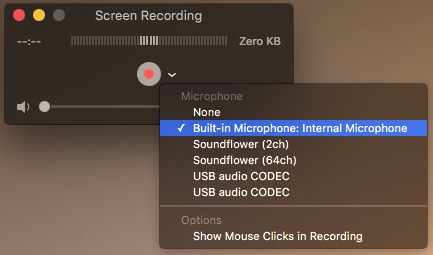
As you talk you should see the audio levels move in the bar above the record button. Hit the Record button and talk away.

New Screen Recording
File > New Screen Recording.
This feature does exactly what it means - records your screen and everything that is in forefront. It is somewhat similar to Panopto or Tegrity but is limited in features.

You can also record audio while recording the screen and the mouse clicks.

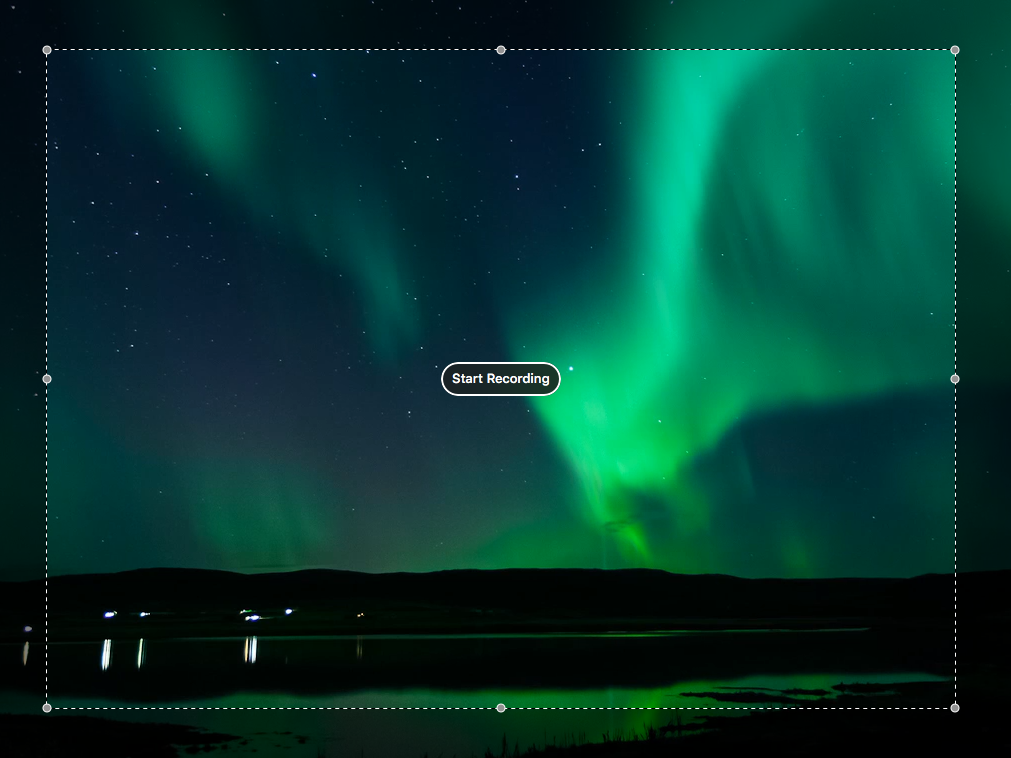
Choose between recording the entire screen or just a portion of it.

After hitting the record button click and drag on the part want to record, click ’Start Recording' and voila.

NOTE: The only issue I have with QT X’s screen recording feature is that it would not record the audio from the video. You should be able to use the built-in microphone and by putting the volume up but the quality of the sound will be degraded. Here, I’ll mention one app that’s not made by Apple. You can use an app like Google’s Soundflower to route the sound inside your Mac to be able to record it in good, almost original quality.

Exporting
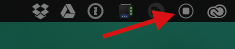
When you’re done recording find the stop button in the upper right side of your screen. It should be placed alongside with your clock, battery, WiFi signal, etc.
The recording will open up and you can play it now.

You can save the video at this point or export it. The two options are practically the same.
Use the export feature if you would like to compress the video to a smaller size.

Editing
QT X could be used to edit any video compressed as a QuickTime codec [mov, mp4, aiff, mp3].
There are a few limited options for editing but two of them are more useful than anything else.

Flip Vertical
Flip your video Horizontally or Vertically. If a recording from your phone shows upside down on your Mac then you could use the Flip Vertical option. You would need to Save or Export the video after this adjustment.

Trim
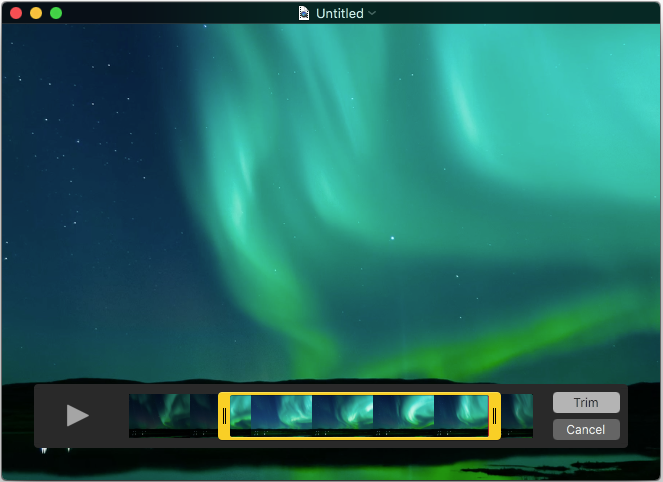
Trimming is very basic but a bit tricky and I always suggest working with a copy of your original recording. Trimming is 'destructive’ and if you don’t have another copy of the original you won’t be able to revert the changes.
Trimming saves only the selected part of the video and it could be used to cut out the shaky beginning or end of the recording.
You would need to Save or Export the video after this adjustment.

Wednesday, January 20, 2016

How do I add prerequisites to my modules in Canvas?


In this week's tip, we will show you how to add prerequisites to your modules.  The reasons for doing this varies, but some Instructors find it useful to have a flow to their course that's easy for their students to follow.  When you set up prerequisite modules, students must complete the content in a module before moving to the next module.  The following is a quick tutorial on how to set up prerequisites (a link with more in depth detail is include at the bottom):


First, open modules

Second, edit modules:

Edit Module


Third, add prerequisite:

Add Prerequisite


Fourth, set your prerequisite:


Set Prerequisite

You will then need to save your changes by Updating your Module:  

Update Module


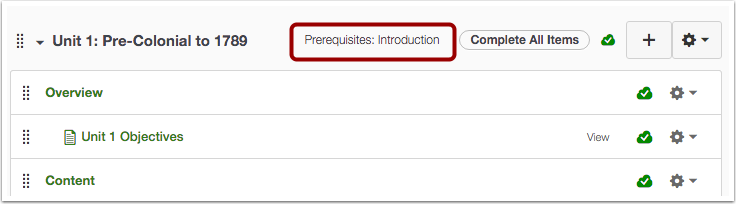
You will see the finished prerequisite next to the name of the module:

View Module


Note, students will know they've completed a particular prerequisite when a green check mark appears next to the content and the module name.

More in depth information on setting up prerequisites can be found at: https://community.canvaslms.com/docs/DOC-2861
also on how to add requirements to a module here: https://community.canvaslms.com/docs/DOC-2862

If you have any questions or would like a tutorial, please call us at:  (253) 566-5176. 


Tuesday, January 19, 2016

How to download your Panopto Video Recordings


This weeks tip focuses on how to download Panopto video Recordings. We received a phone call from a student asking us how he could keep a Panopto video he had made for his class. The quarter was ending and he would eventually not have access to his class to see his video.  The steps below show you how to download your online Panopto videos. (Remember - you can then choose where you want your downloaded video to go; your desktop, USB, etc.)

Go to the video you want to download and click on settings.


1.  Select Outputs
2.  Select Dowload Podcast


As always, if you have any questions, please contact us in Information Commons at:  (253) 754-3727.


Monday, November 30, 2015

Assigning an assignment or quiz to specific students


This week we will focus on showing you how to assign a quiz or an assignment to specific students in the course.  For example, say you want two versions of a quiz #7; one with essay questions and the other one with multiple choice.  Maybe one of your students has accessibility needs and multiple choice questions may not be in their best interest.  Therefore, assigning an alternate quiz #7 to just that person with essay questions may be a solution.  Remember, only those students assigned to that particular quiz or assignment will see it in their Canvas course.

          -First you will need to make two versions of a particular quiz or assignment-

Step #1:

Go into the "Edit" tab of that quiz or an assignment.

Step #2:

Within the edit screen, scroll down to the very bottom until you see that "Assign" option:


Step #3:

Click into the empty space of the "Assign to" section:


Step #4:

Select the students you want to take that particular quiz/assignment & Remove the "Everyone" option-leaving only those new selected students:


Monday, November 16, 2015

How to add captions to YouTube videos

In our ongoing effort to help TCC become a more accessible institution, we encourage faculty to add captioning to their videos.  YouTube provides a simple way to add subtitles to your videos.  With a few steps and a little bit of practice, you will be a pro before you know it.

The following screenshots will help guide you in setting up captions/subtitles to your videos.
The following video will give you a more in depth tutorial of how to literally add the subtitles into your video:  https://goo.gl/teHAom


From within the Video Manager setting in YouTube:
1.  Select your video
2.  Click Subtitles and CC


1.  Select Add new subtitles or CC
2.  Select English


Choose how you want to create your subtitles.  For example, if you would like to manually add subtitles you could choose the "Transcribe and auto-sync" or "Create new subtitles or CC" option.

Remember, the following link: https://goo.gl/teHAom will give you a more in depth tutorial.  As always, if you have any questions, please feel free to contact us at:  (253) 566-5176 or submit a ticket at elearning@tacomacc.edu.

Monday, November 9, 2015

Ways to collaborate as a group...

There are several ways you can collaborate as a team using various group communication tools within and without Canvas.
For example:  
If you want your students to be in control of creating their own groups, with the ability to add group members by themselves, (with or without you being involved - you can be completely hands off if you wanted to) then suggesting your students use the "Conferences" feature might the best option.
1.     Use e-mail and create a "distribution" group.  Click here for instructions:  Create a contact group in Office 365.docx
2.     Use the Canvas Inbox to send Canvas-only communications to the group you created. Here is a link to the Canvas Guides for the Communications/Inbox.
3.     Use the Canvas Chat (on navigation bar to the left).  Here is a link to the Canvas Student Guides for the Chat link.
4.     Use the Canvas Conferences (on navigation bar to the left).  Here is a link to the Canvas Guides for the Conferences link.
5.     Use the Canvas Collaborations (on navigation bar to the left).  Here is a link to the Canvas Student Guides for using the Collaboration link.


Tuesday, September 29, 2015

How do I convert a PDF file into a Word file?

Have you ever needed to make a change to your syllabus for the new quarter just to realize you couldn't, because it was a PDF file?

We've received phone calls in the past from Instructors who were trying to publish their course for the new quarter, but couldn't because their syllabus wasn't ready.  Since they didn't have the original Microsoft Word document to allow them to edit, they were stuck with the uneditable PDF version.

There is however, a solution!  Here in the Information Commons we have a program called "Adobe Acrobat X Pro" that allows you to convert your PDF into a Word document.  

To start, you will need to open up your PDF document on a computer in the small computer section of the Info. Commons and immediately follow these steps:    


(1) Select File
(2) Select Save as
(3) Select Microsoft Word
(4) Select your preferred Microsoft Word document type

As always, if you need help, please let us know.